Installing chiaki-ng
Only download chiaki-ng from official sources
The official sources are the GitHub releases page, Flathub, winget (winget install --id=StreetPea.chiaki-ng -e) and the Homebrew cask below. Other websites offering chiaki-ng downloads, such as chiaki-ng.com, are not run by this project, and we can't vouch for the files they serve.
Copying from and Pasting into Konsole Windows
You can copy from and paste into konsole windows with Ctrl+Shift+C (copy) and Ctrl+Shift+V (paste) instead of the normal Ctrl+C (copy) and Ctrl+V (paste) shortcuts. In fact, Ctrl+C is a shortcut to terminate the current process in the konsole. Additionally, you can still right-click and select copy or paste as per normal.
-
Open the Discover store
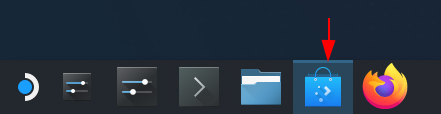
-
Search for
chiaki-ngin the search bar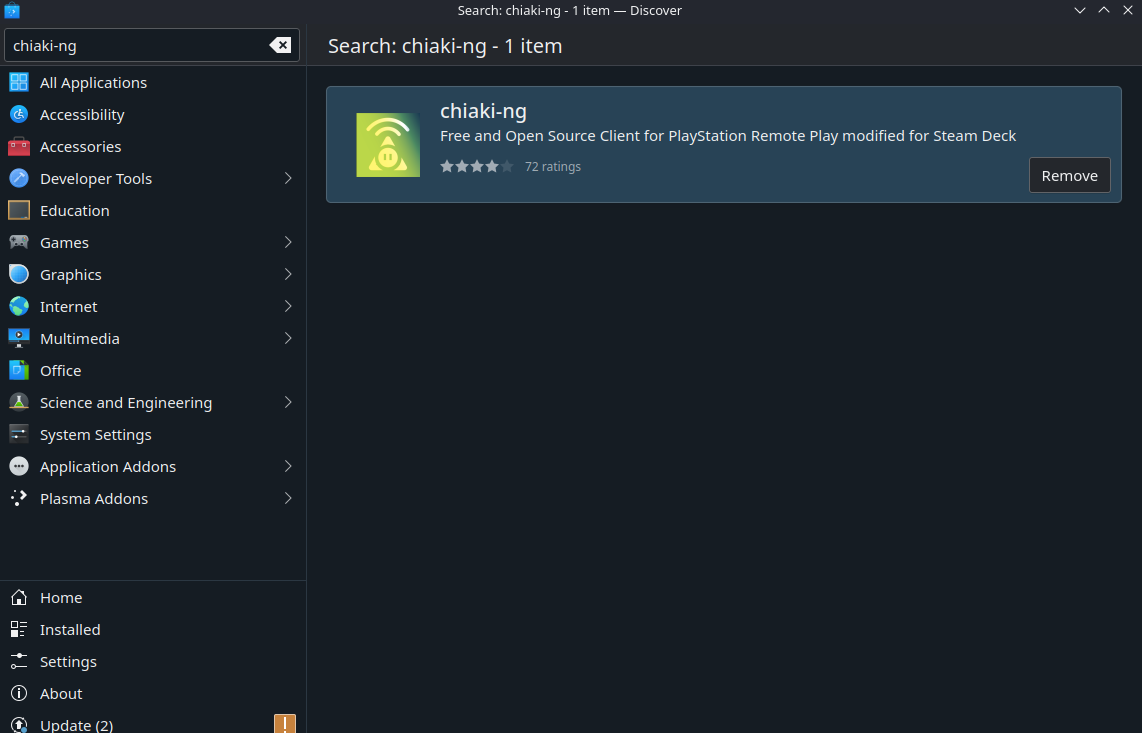
-
Click Install
-
Run the following command in the
konsoleflatpak install -y io.github.streetpea.Chiaki4deck
About chiaki-ng
The above instructions are for the official chiaki-ng flatpak on Flathub.
However, you can also build the flatpak yourself (recommended for users who want to add their own source code changes on top of the ones I've made) by following the instructions in Building the flatpak yourself.
Requires macOS 15 (Sequoia) or later on Apple Silicon.
-
Install with the following command in the terminal
brew install --cask streetpea/streetpea/chiaki-ng
- Download the appopriate package from the releases page on GitHub (for macOS, use the Apple Silicon
-arm64package, which requires macOS 15 (Sequoia) or later; Intel-amd64/-x86_64packages are no longer built)
If chiaki-ng Doesn't Open or Shows a Blank Window
This usually means Vulkan isn't working on your system, for example because of an outdated graphics driver or another program's Vulkan layer (screen recorders and game launchers can install these). If chiaki-ng crashes while starting Vulkan, it switches to OpenGL by itself the next time you open it. If it opens to a blank or white window instead, start it once with the --opengl option, which switches the renderer to OpenGL from then on:
Open chiaki-ng (OpenGL) from the Start menu. With the portable package, run chiaki.exe --opengl from a command prompt in its folder.
flatpak run io.github.streetpea.Chiaki4deck --opengl
./chiaki-ng.AppImage_x86_64 --opengl
/Applications/chiaki-ng.app/Contents/MacOS/chiaki --opengl
You can switch back to Vulkan later under Settings > Video > Renderer Backend. The OpenGL renderer doesn't support HDR.