Add a host (local)Switch
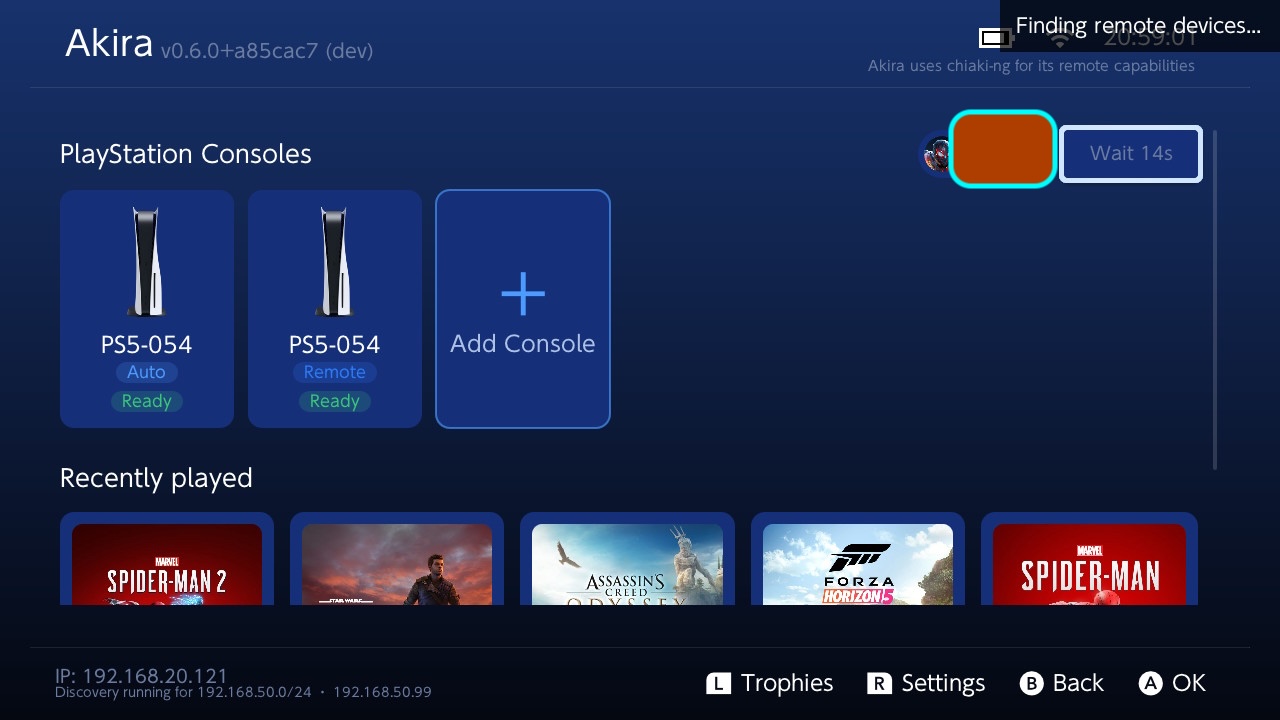
Autodiscovery only works on the same subnet.
On another subnet, use Add Console and type its IP.
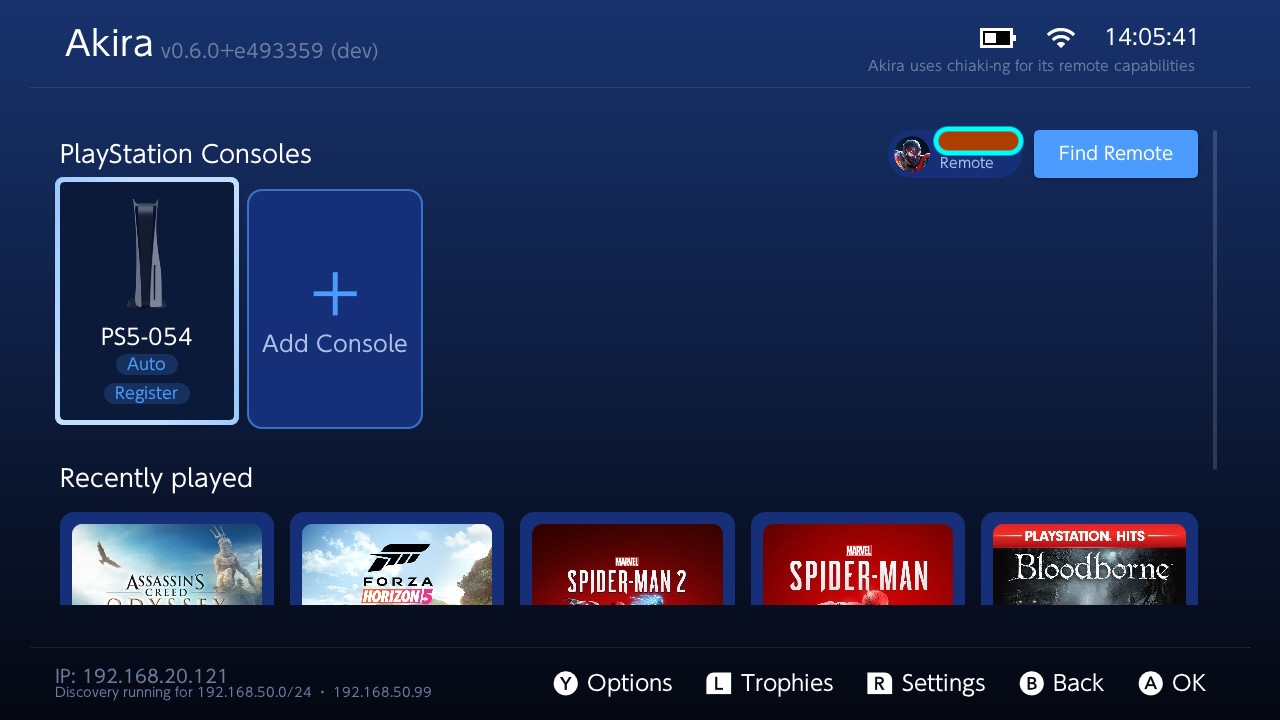
Register the consoleSwitch
Registering the console is required before you can use the console. There are two main mechanism
- Automatic (Over PSN), which relies on being able to punch through to your PS,
- Enter PIN, where you have to go to settings and set up the 8 digit pin.
- Automatic (over PSN)
- Enter PIN
- You must have registered your PSN tokens first. If you came from a legacy version of akira, you would not have this if you didn't set it up.
- Select the console on the host list and hit Register.
- In the dialog, pick Automatic (over PSN).
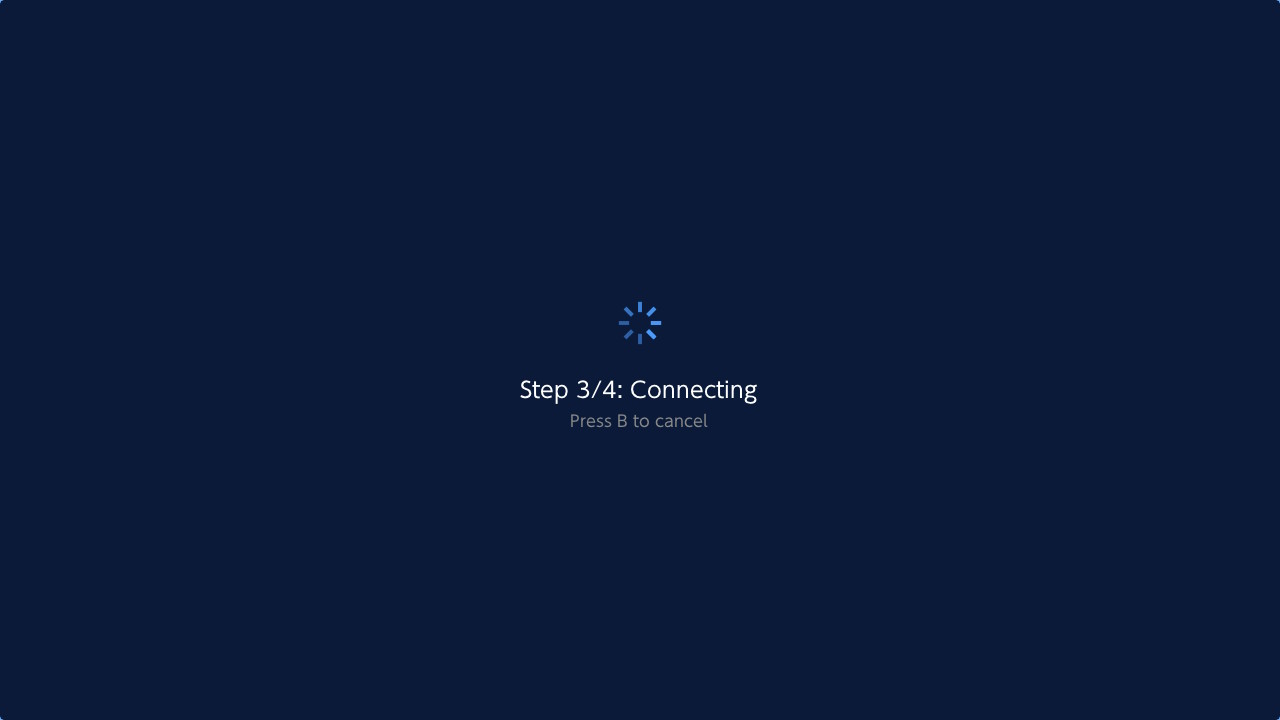
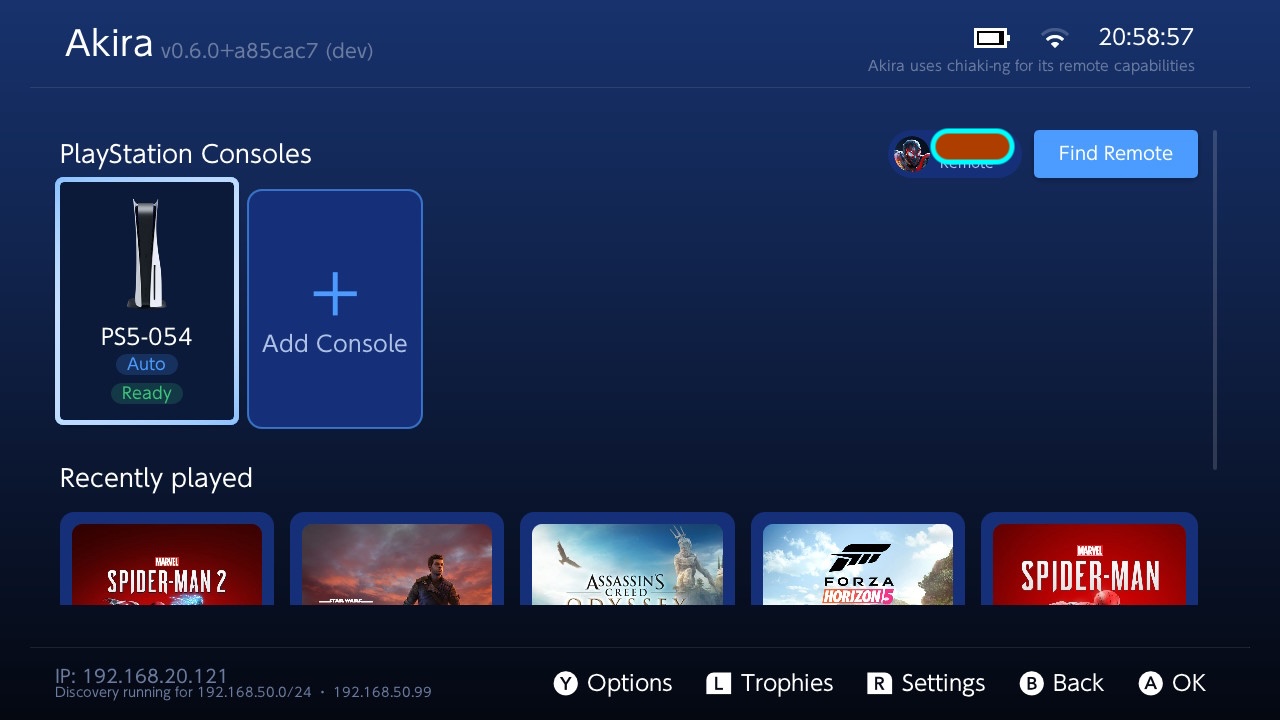
Give it some time, if its able to punch through, it would then bring you back to the home screen
Fallback method.
- On the console, open the pairing screen and read off the 8-digit PIN:
- PS5:
Settings -> System -> Remote Play -> Link Device - PS4:
Settings -> Remote Play Connection Settings -> Add Device
- PS5:
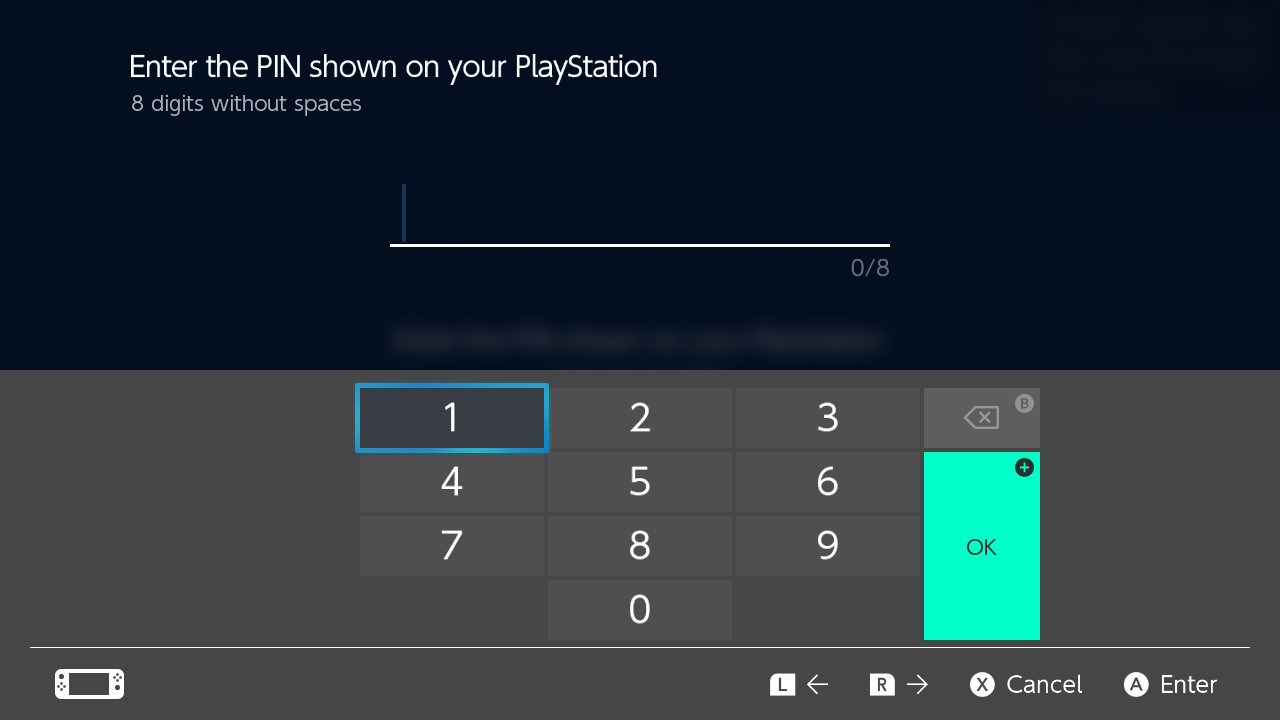
- On the switch, hit Register, then pick Enter PIN.
- Type the 8 digits. That's it.
Add a host (remote)Switch
Remote play over the internet is very network dependent. The same prerequisites as chiaki-ng apply:
- Console on the latest firmware.
- Register it first (above). That's where the registration key comes from.
- Over PSN, PS4 only works with the primary console on your account. Sony's rule.
Beyond this, you MUST have connectivity to github, or you will not be able to fetch the relevant STUN servers.
If you don't have connectivity to github, please fix that.
Hit Find Remote, then link it to a local console if registered via manual, otherwise, if the name matches, it will auto associate it to the new console.
Connecting to Cloud StreamingSwitch
You need a PS Plus subscription on your PSN account to use this feature.
The required tokens should have been sent to your console during the registeration process from the companion. However, there is no good way to refresh this token on-device on Switch. I am open to suggestions, but it means that when the token inevitably expires, you will need to re-pair the companion again.