Registering your PSN account
I am very tired of people who don't read at all and then complain the documentation doesnt show anything.
1. Set up your PlayStation console for remote playPlayStation
a. Enable remote play
- PS5
- PS4
Go to Settings -> System -> Remote Play and turn on:
Enable Remote Play
- Go to
Settings -> Remote Play Connection Settingsand turn on:Enable Remote Play
- Go to
Settings -> Account Management -> Activate as Your Primary PS4and select:Activate
b. Enable waking your console from rest mode
- PS5
- PS4
Go to Settings -> System -> Power Saving -> Features Available in Rest Mode and turn on:
Stay Connected to the InternetEnable Turning on PS5 from Network
Go to Settings -> Power Save Settings -> Set Function Available in Rest Mode and turn on:
Stay Connected to the InternetEnable turning on PS4 from Network
Over PSN, PS4 remote connection only works with the primary console on your account. That's a Sony limitation
2. Log in to PSN in the companion appPC
You only ever need to use the companion for two things:
- Registring an account
- After the NPSSO expires, the companion must be used to retransmit the NPSSO token back to the switch.
The companion app provides a simplified way of fetching tokens and transmitting them to the switch.
Because most of the userbase is incapable of performing this action manually, the companion app is the only way avaliable for first time users.
Grab the Akira Companion app from the release and run it.
On Linux, chmod +x it first, then run it.
macOS blocks unknown publishers by default. Allow it under System Settings -> Privacy & Security.
-
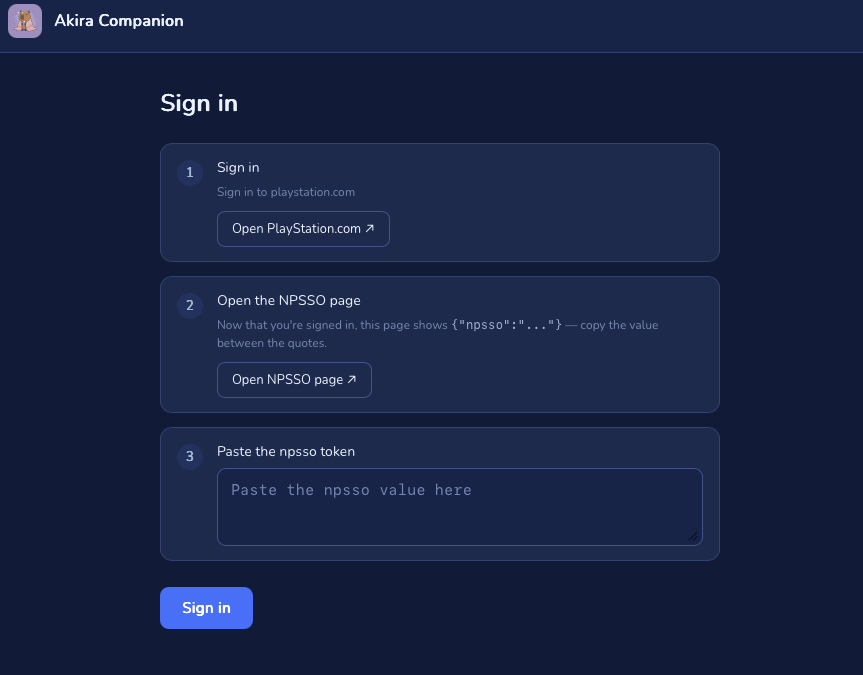
Sign in to PlayStation. Click Open PlayStation.com, sign in (top-right), come back.
-
Open the NPSSO page. Click Open NPSSO page. Now that you're signed in, it shows
{"npsso":"..."}.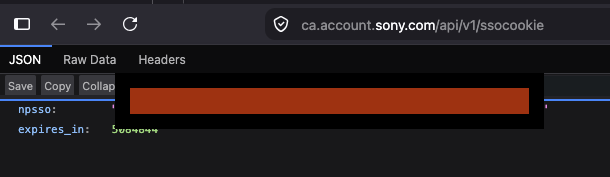
-
Paste the npsso token. Copy the value between the quotes (drop the
"), paste it in, click Sign in.
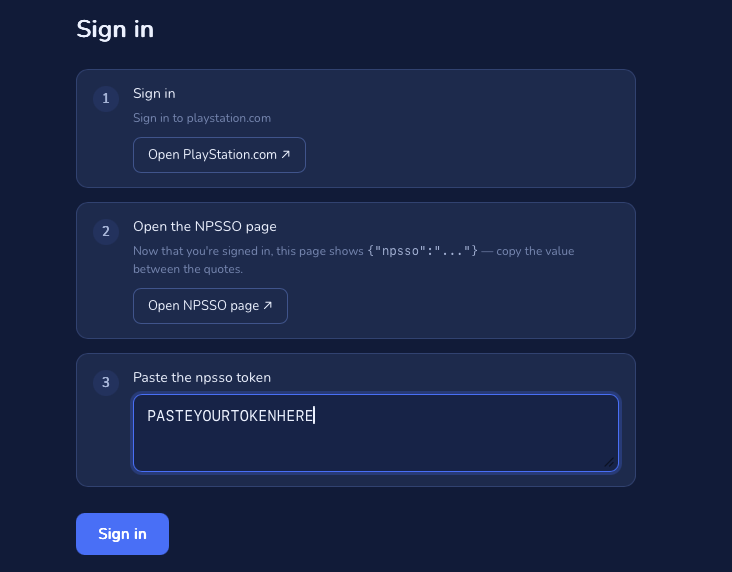
If you are unable to automatically discover your switch, please make sure that your switch and computer are on the same subnet, otherwise please enter the ip in manually.
3. Open the pairing screen on the switch Switch
On the switch, as a new user, you can pair through either the settings page or the "Set up your account" tab on your host page.
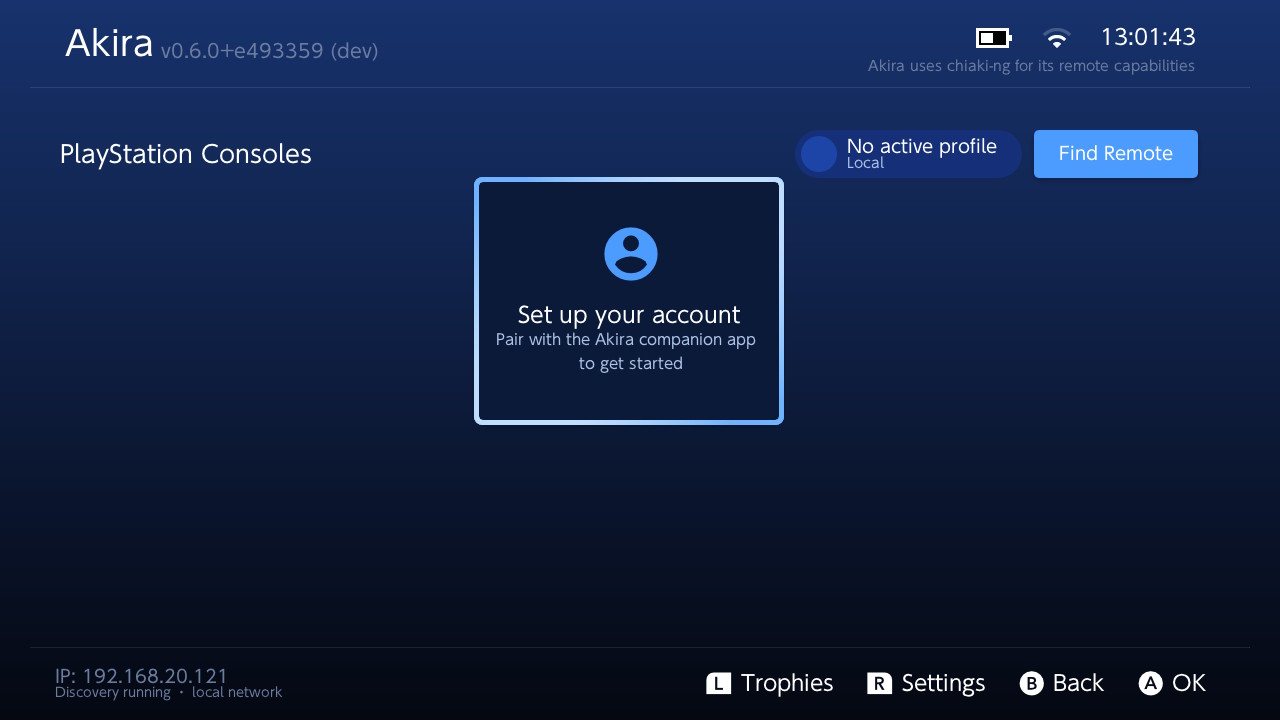
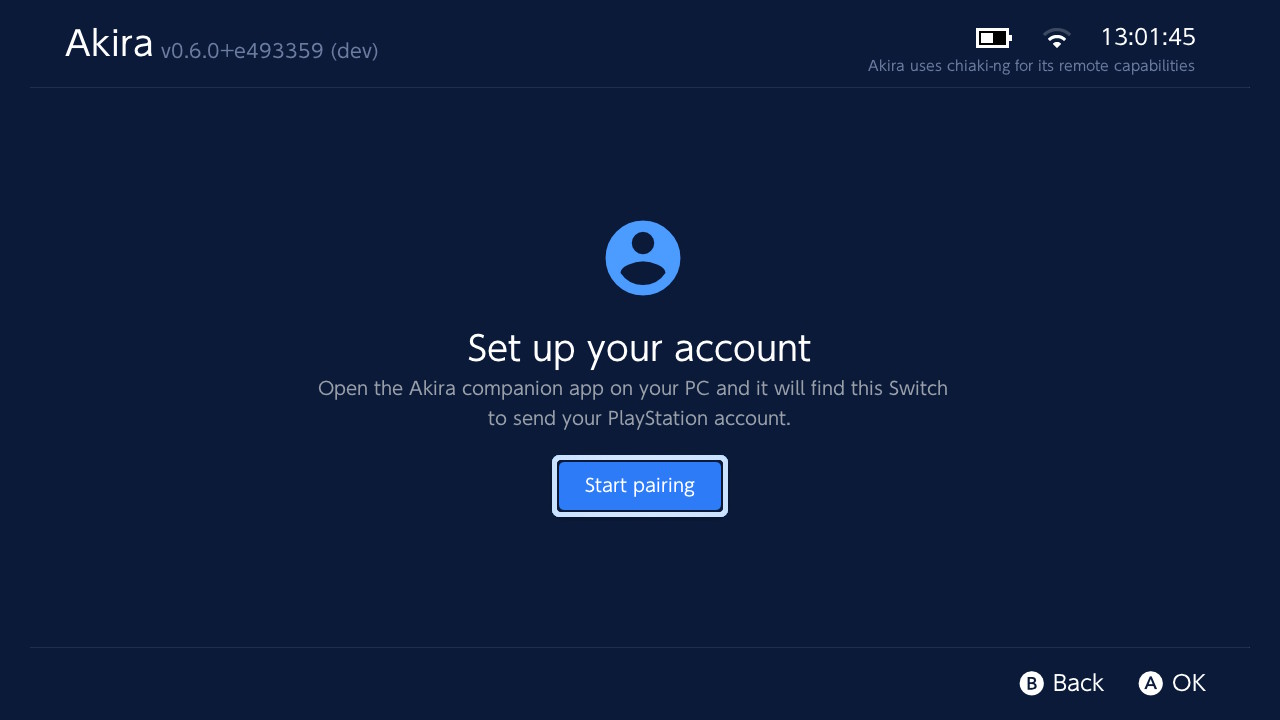
You will now see a pairing screen with your switch's ip address, port, and a 4-digit code.
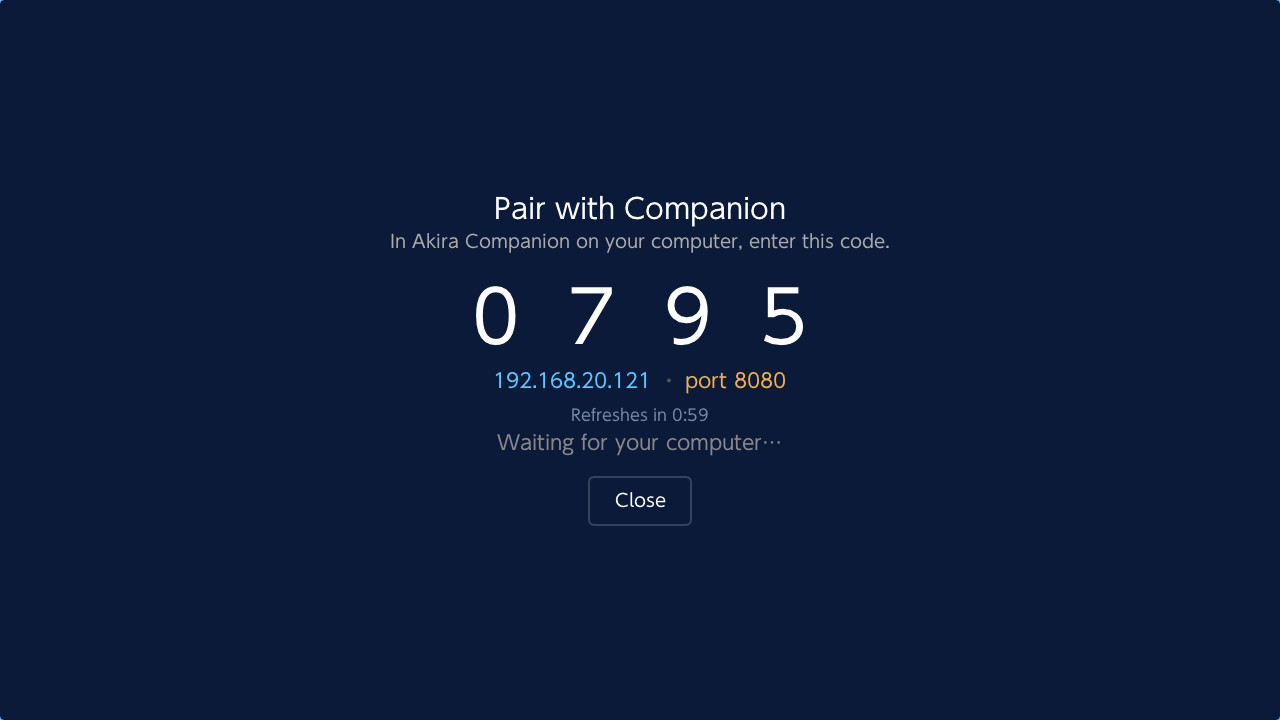
Leave thi screen open until the pairing is complete.
4. Pair with the switch from your desktopPC
Back on the computer, on the Send to your Switch screen:
- Same network? The Switch shows up under Found on your network. Click it to fill in the IP and port.
- Different subnet, or it didn't show up? Type the Switch IP and port from the Pair screen. Manual always works.
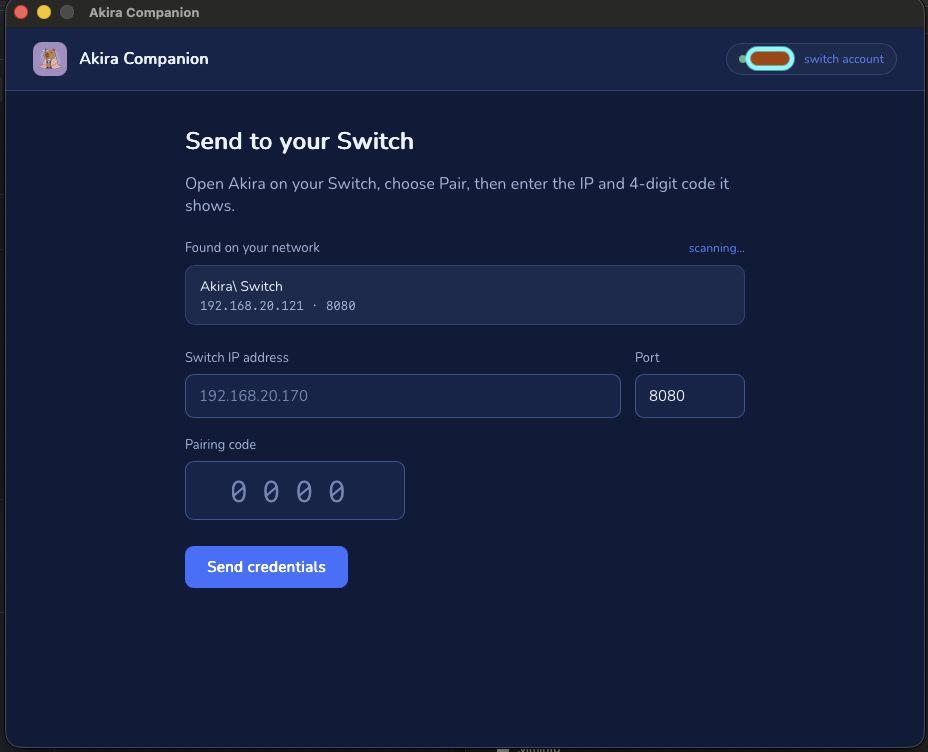
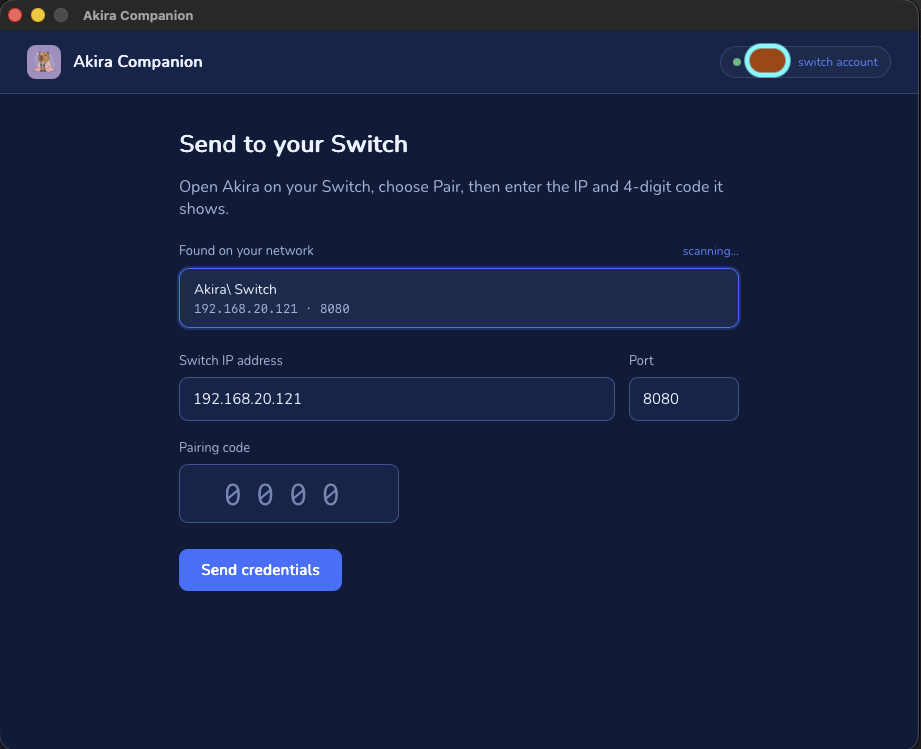
Enter the 4-digit code, then click Send credentials.
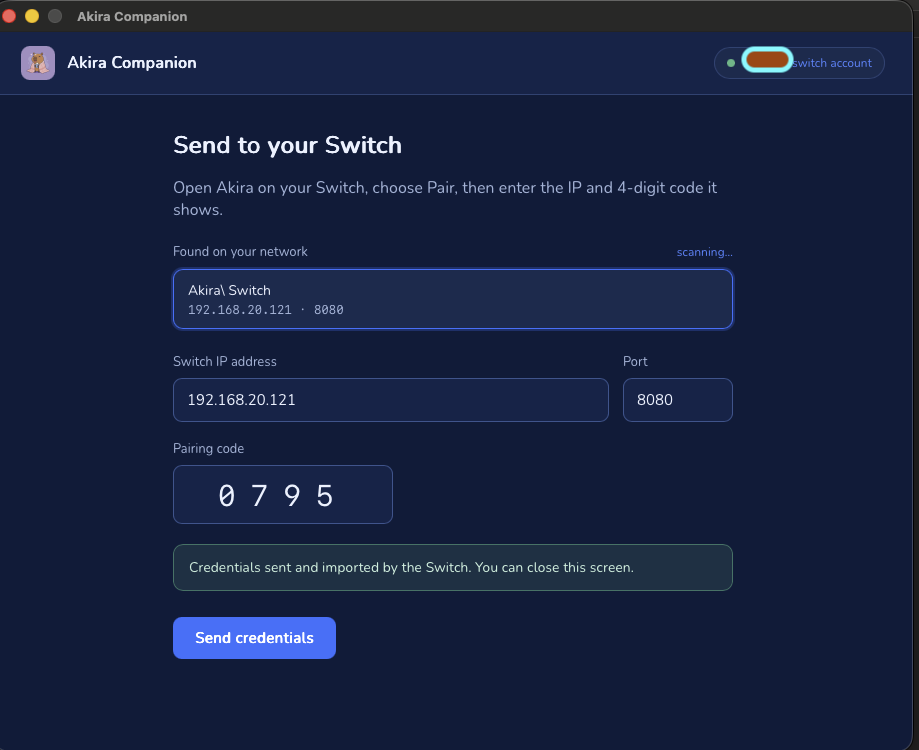
The companion now has sent the tokens to the switch, and you should be ready to proceed without the companion. Go back to the host screen on the switch
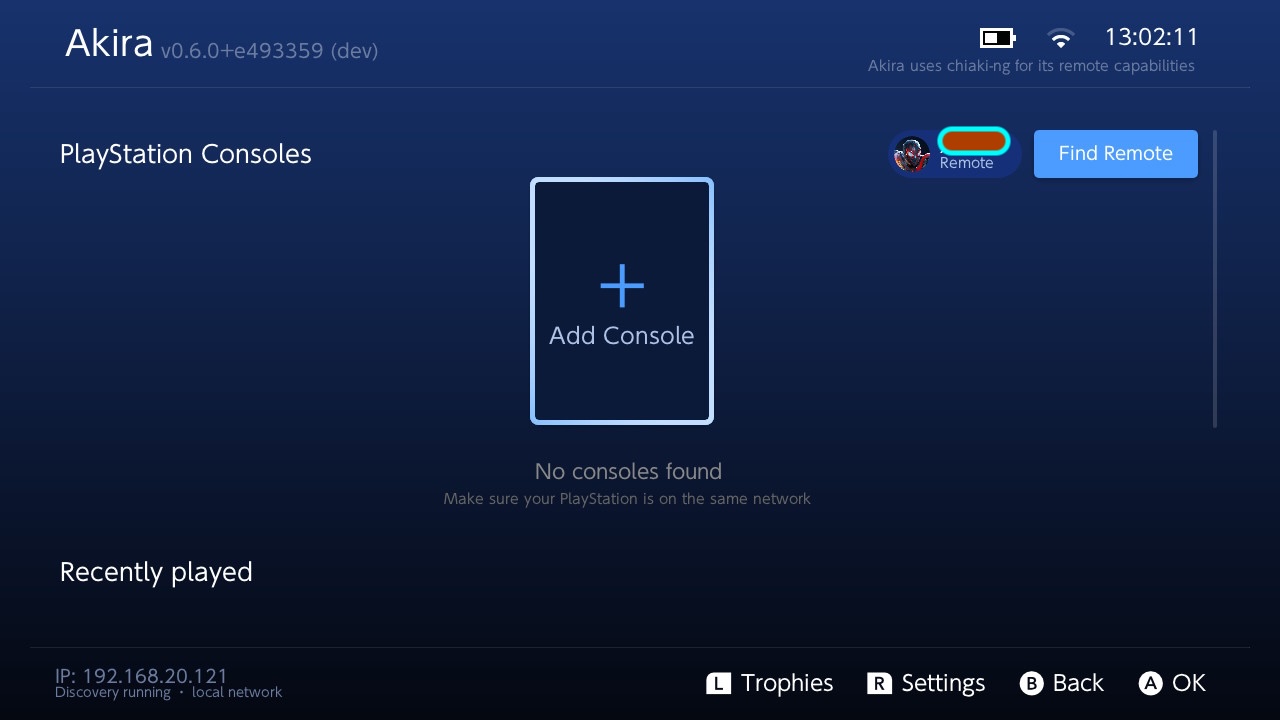
Your PSN account now lives on the switch. Next: add and register a console.